
Creating & Managing Templates
Templates
Section titled “Templates”Before you can issue a pass you need a design of what that pass will look like. This is a template.
A template determines the layout of the pass, colour scheme, images as well what what information will be displayed on the pass.
If a barcode is reqired then it also determines the type of barcode that each pass will use.
Base templates
Section titled “Base templates”Smartix provides a selection of templates types which you will use as a starting point for your customer template.
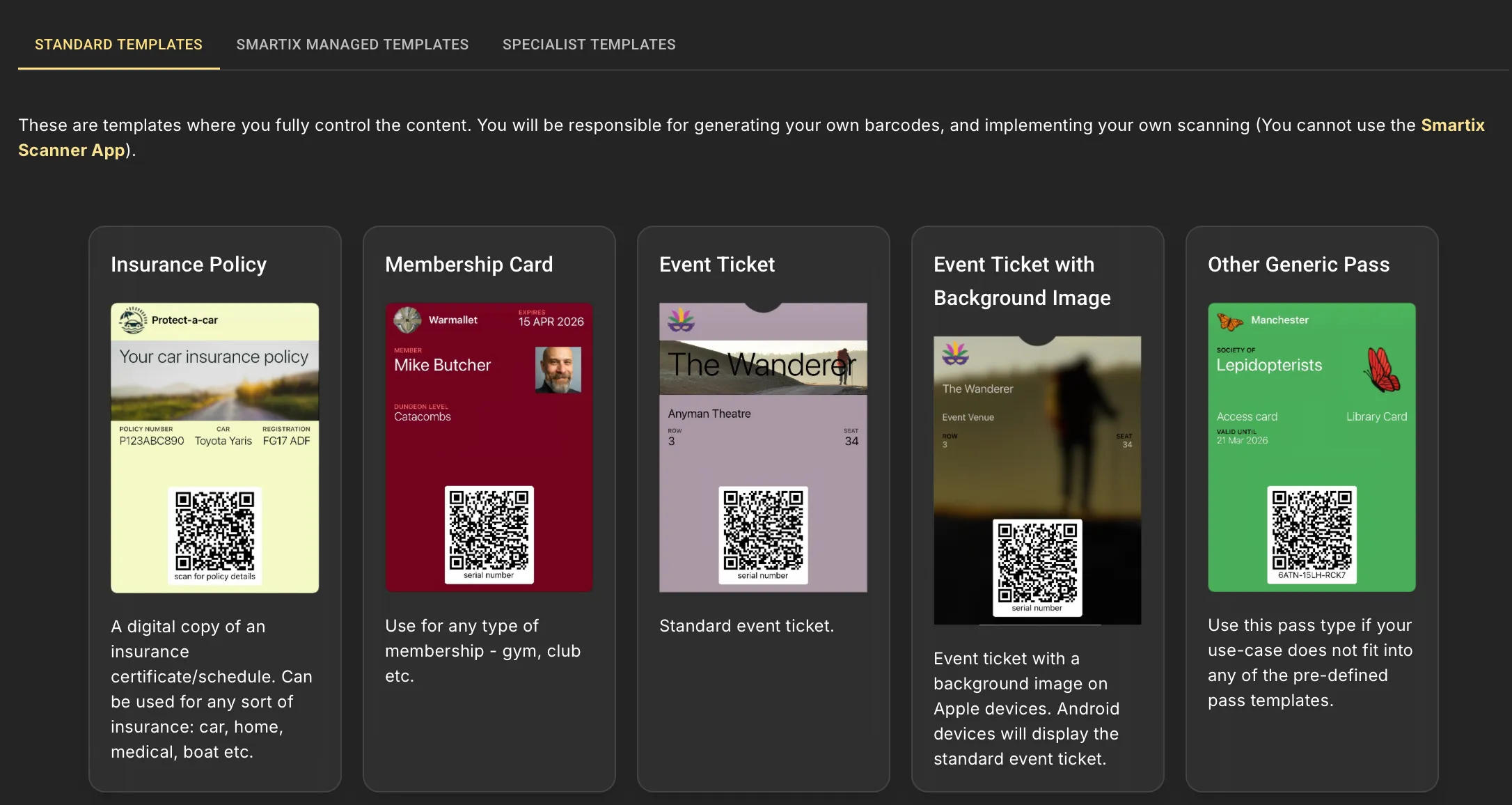
Since Apple and Google offer different pass type choices, which offer different layouts and functionality, is is not always obvious which combination of Apple pass type and Google pass type work best together for a given application. Thankfullyt the Smartix team have already determined the best combinations. When you choose a Smartix base template, you are choosing a combination of an Apple and a Google pass type.
Standard vs Managed vs Specialist templates
Section titled “Standard vs Managed vs Specialist templates”Smartix offers three type of pass templates for you to choose from (although specialist templates are available only on request).
Standard templates
Section titled “Standard templates”Choose one of these if you will be using your own scanning equipment and validating barcodes with your own systems. These templates offer the widest choice and maximum customisation options.
Managed templates
Section titled “Managed templates”These are aimed at users who do not already have any systems in place that might be used to scan and validate passes. You use will use Smartix Scan App to validate and interact with these passes. The range of passes and customisation options are more limited, but you can be up and running with these quickly and with no additional cost.
Specialist templates
Section titled “Specialist templates”Sometimes it is helpful to have a template that is difficult to produce with the options available. We have, for example, UK Train tickets, all approved by RDG for use by licensed retailers. Our templates for these include auto-generate itinerary, ativate for carnet tickets etc.
Whilst this could be done with some standard templates, it would not be possible to replicate the auto-generated itinerary etc.
If you have a need for something more complex, then do get in touch and we will see what we can do to assist you by way of a spcialist custom template.
Choosing your template
Section titled “Choosing your template”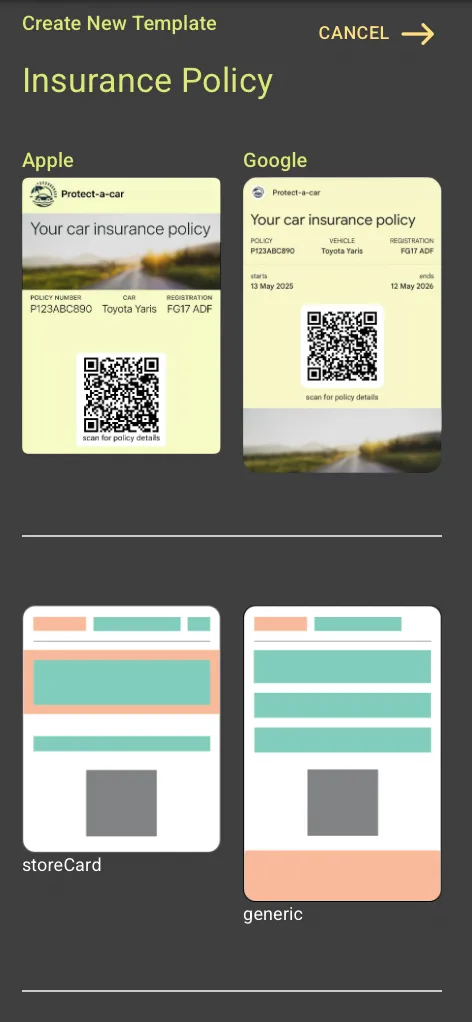
After clicking on a template option you will be presented with additional information: Images of a smaple Apple and Google pass and outline images showing the ediable regions of each.
In addition there is a detailed description of the pass type and possible uses.
At the bottom is an input for you to name your pass before clicking the button to create your template.
After a short while your new template will appear in your template list.
The Wizard
Section titled “The Wizard”There are some customisation step that you must take before your new template can be used. You can either do it right away, or you can do it later. You’ll need to complete the wizard before you can do any manual edits, but you’ll be guided to do so when needed.
The wizard will prompt you for essential information. Typically this will be things like your organisation name (we pre-fill this from your account details, but you may wish to override that if you are creating passes for a client), colour scheme and required images.
Duplicate a template
Section titled “Duplicate a template”The other way to create a new template is to duplicate one you created previously. This will make an exact copy that you can then edit freely.
When you make a copy you will not go through the wizard process again. You’ll need to make all the necessary changes yourself in the editor.
The option to duplicate a template is located in the template top menu. Select a template from the templates list and you’ll see it at the top of the page.
Template list
Section titled “Template list”The template list can be access from the dashboard or from the main menu.
This list show you your templates. You can toggle between seeing current and archived templates. (Templates are not deleted, you simply archive them).
Filter options are provided for you to search and/or filter which templates are shown. You can export the list in JSON, CSN or MS Excel formats.
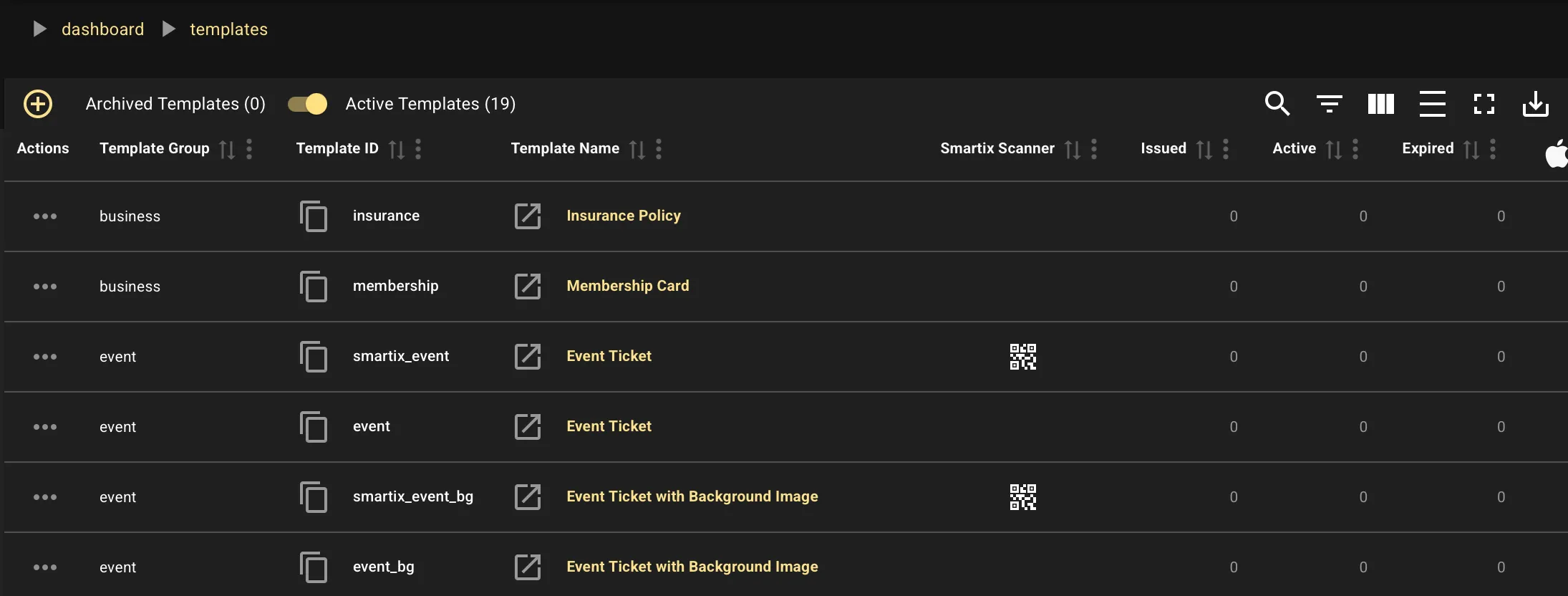
Table columns show you a range of information such as the number pas live passes issued, expired, installed on devices etc.
Click on a template name to drill down to see the details for that template. You can also use the menu on the left of each row to carry out quick tasks.
Template details
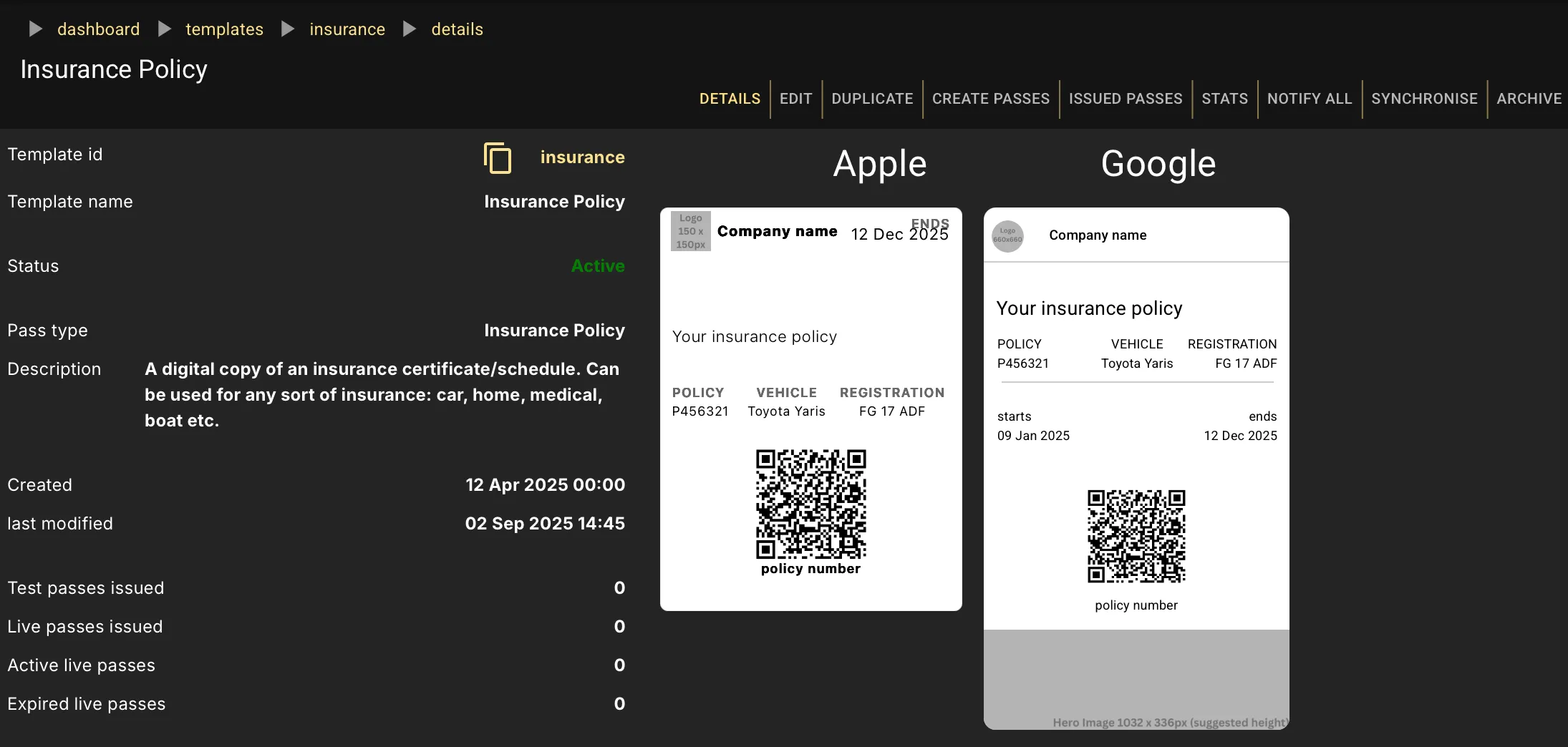
Section titled “Template details”Once you drill down to a template the first thing you see is the details page. This gives you an overview of what that template looks like, passes issued etc.
The top menu bar give you a range of options.
Template editor
Section titled “Template editor”Duplicate template
Section titled “Duplicate template”Make a copy of the current template. This can be a better option than creating a new template if you need one similar to an existing one.
Issue passes
Section titled “Issue passes”See Issue passes
Statistics
Section titled “Statistics”Some basic statistics detailing when passes have been issued.
Notify all
Section titled “Notify all”See Notifications
Synchronise
Section titled “Synchronise”Archive
Section titled “Archive”This moves a template to the archived list. A similar option exists to recover a template from the archive.
When a template is archived it cannot be used to issue passes, nor can you send notifications or updates. However, one click is all it takes to recover an archived template back into your active list.