
Sample Instance Data
Since real passes consist of a mixture of templates items and items that are unique to each pass, when we create passes you have to provide a data file containing the unique items for each pass.
In order to be able to present an accurate preview, we need some same data. When you create a template it will incude soem sample data. You will probbaly need to edit and/or add to that initial data.
When you edit text fields, you’ll notice a button [EDIT SAMPLE DATA]. Clicking that will open the sample data editor.
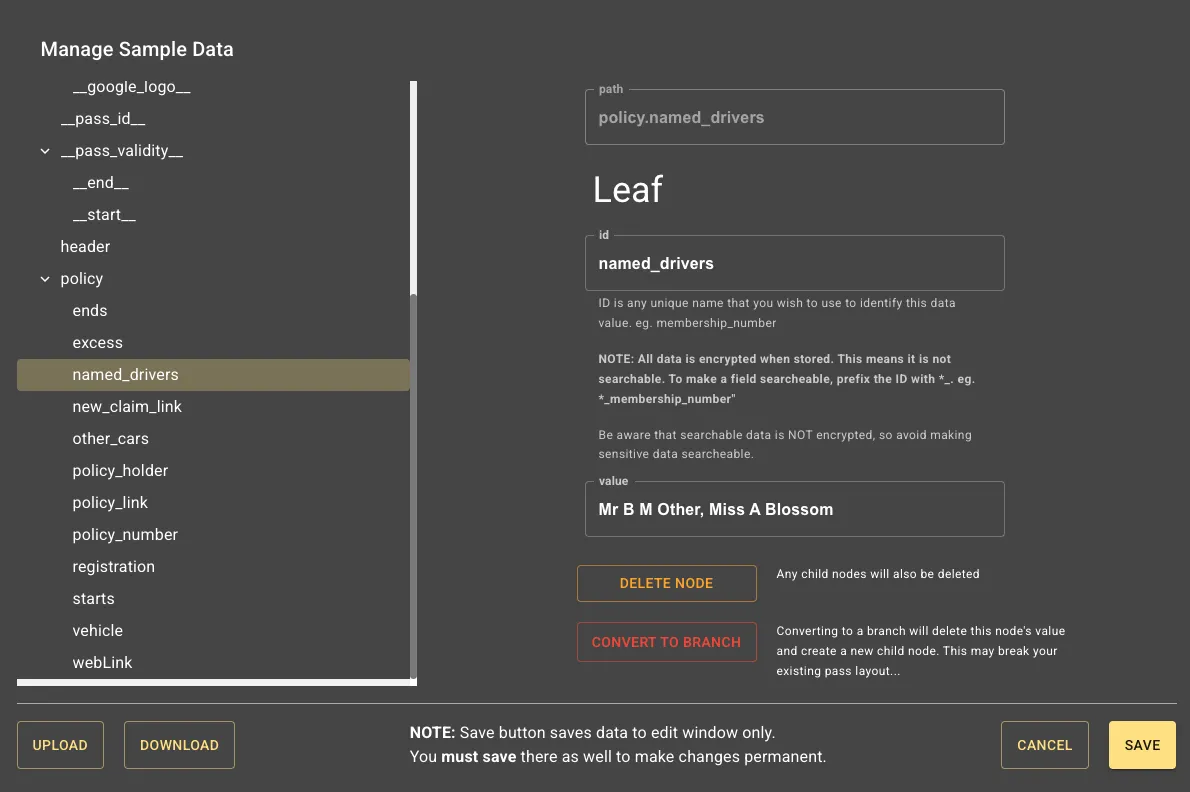
The left panel shows a tree view of your data. The right hand panel has options to edit / add / delete data items.
Items with __ around are required items and cannot be removed. You can, however, edit the sample values that they hold.
In the image above you can see named_drivers is highlighted. You should see that this item is indented and sits below an item called policy. You can confirm this by looking at the path field at the top of the edit box on the right : policy.named_drivers.
So, if you wish to use that value for a field, you will refer to it as {{policy.named_drivers}}. Of course, you don’t have to type that it, just select it from the list.
__pass_id__ is one of our reserved data items. This is set by us and will contain the ID you provide when you create the pass.
Adding items
Section titled “Adding items”To add a new data item, just select a parent. Instance data is the root node, so you can select that as the parent unless you need nested data. Click [ADD CHILD] in the edit panel. A new data item is created called newItem. Just overtype that name to set your own name.
You can give the new item a value by typing in the value text box.
Nested items
Section titled “Nested items”If you want to organise your data into logical groups, then you can do so. Start by creating an item that will represent the group (policy) in our example above. With that selected, click the [CONVERT TO BRANCH] button. You’ll now see that this item no longer has a value field, but instead has a child item called child1.
Rename that and give it a value. In our example above we’d renamed it to named_drivers and give it a value of Mr B M Other, Miss A Blossom.
To add further items, select the parent (policy) again and click [ADD CHILD].
Upload / Download
Section titled “Upload / Download”You can also download a JSON copy of the data file which you can edit locally and then upload. Please be careful with thos option - do not delete our __ fields!
When you are ready to create passes you will need to create a data file. This download will be a template for that.